> For the complete documentation index, see [llms.txt](https://docs.deltastream.io/llms.txt). Markdown versions of documentation pages are available by appending `.md` to page URLs; this page is available as [Markdown](https://docs.deltastream.io/integrations/setting-up-data-store-integrations/iceberg-rest-catalog.md).
# Iceberg REST Catalog
### **Iceberg REST Catalog**
Apache Iceberg is a high-performance table format that supports large analytic tables. An Apache Iceberg REST catalog is a service for managing and accessing Iceberg tables in a consistent way. It allows clients to interact with Iceberg table metadata without requiring direct access to the underlying storage. This enables multiple clients to safely use the same Iceberg tables.
This document walks through setting up an Iceberg catalog in DeltaStream.
{% hint style="info" %}
**Note** Iceberg is unique in DeltaStream in that, if you plan on reading from or querying Iceberg data, it requires you also define an object called a **compute pool**. A compute pool is a set of dedicated resources for running batch queries.
{% endhint %}
You do not need a compute pool if you are only writing to Iceberg – if, for example, you’re streaming filtered Kafka data into Iceberg tables. [More information on compute pools](/overview/core-concepts/compute-pools.md).
For the purposes of this tutorial we will use a REST catalog provided by Snowflake, but any compliant implementation will work.
### Before you Begin
1. Work with your internal engineering team to set up a Snowflake environment. You can start with the [Snowflake Open Catalog tutorial](https://other-docs.snowflake.com/opencatalog/tutorials/open-catalog-gs). Go through the overview and complete the Snowflake environment setup instructions. At that point you will have the following values:
1. \`client\_id\`
2. \`client\_secret\`
3. \`principal\_role\_name\`
4. \`catalog\_name\`
5. \`open\_catalog\_account\_identifier\`
6. S3 region that your storage bucket is located
2\. For this setup guide you must also have created a stream defined in DeltaStream named pageviews, which is backed by a topic in an Apache Kafka data store. [More details on creating a stream in DeltaStream.](/reference/sql-syntax/ddl/create-stream.md)
### Adding an Iceberg REST data store
**To set up Iceberg REST**
1\. Log onto DeltaStream. In the lefthand navigation, click **Resources (**  ) to display a list of data stores in your organization.
2\. Click **+ Add Data Store**. When the **Choose a Data Store** window opens, click **Iceberg Rest**. The **Add Data Store** window opens for Iceberg REST.

3\. Enter the required authentication and connection values. These include:
* **Name**. We suggest a self-describing name, such as `iceberg_rest`.
* **S3 Region**. The region where your AWS S3 bucket resides.
* **Catalog ID**.
* **URIs**.
* **Scope**.
* **Client ID**.
{% hint style="info" %}
**Note** You can also use the DeltaStream CLI to create an Iceberg\_REST data store. To do this, run the below statement:
```sql
CREATE STORE opencatalog WITH (
'type'=iceberg_rest,
'uris' = 'https://.snowflakecomputing.com/polaris/api/catalog',
'iceberg.catalog.id' = '',
'iceberg.rest.client_id' = '',
'iceberg.rest.client_secret' = '',
'iceberg.rest.scope' = 'PRINCIPAL_ROLE:',
'iceberg.rest.s3.region'='');
```
{% endhint %}
4\. Inspect the data store to see the namespaces available within your REST catalog. To do this, navigate to **Workspace** and then examine the newly-created data store.
{% hint style="success" %}
**Tip** When you view entities under a REST catalog data store, DeltaStream displays namespaces and tables, as shown below:
{% endhint %}
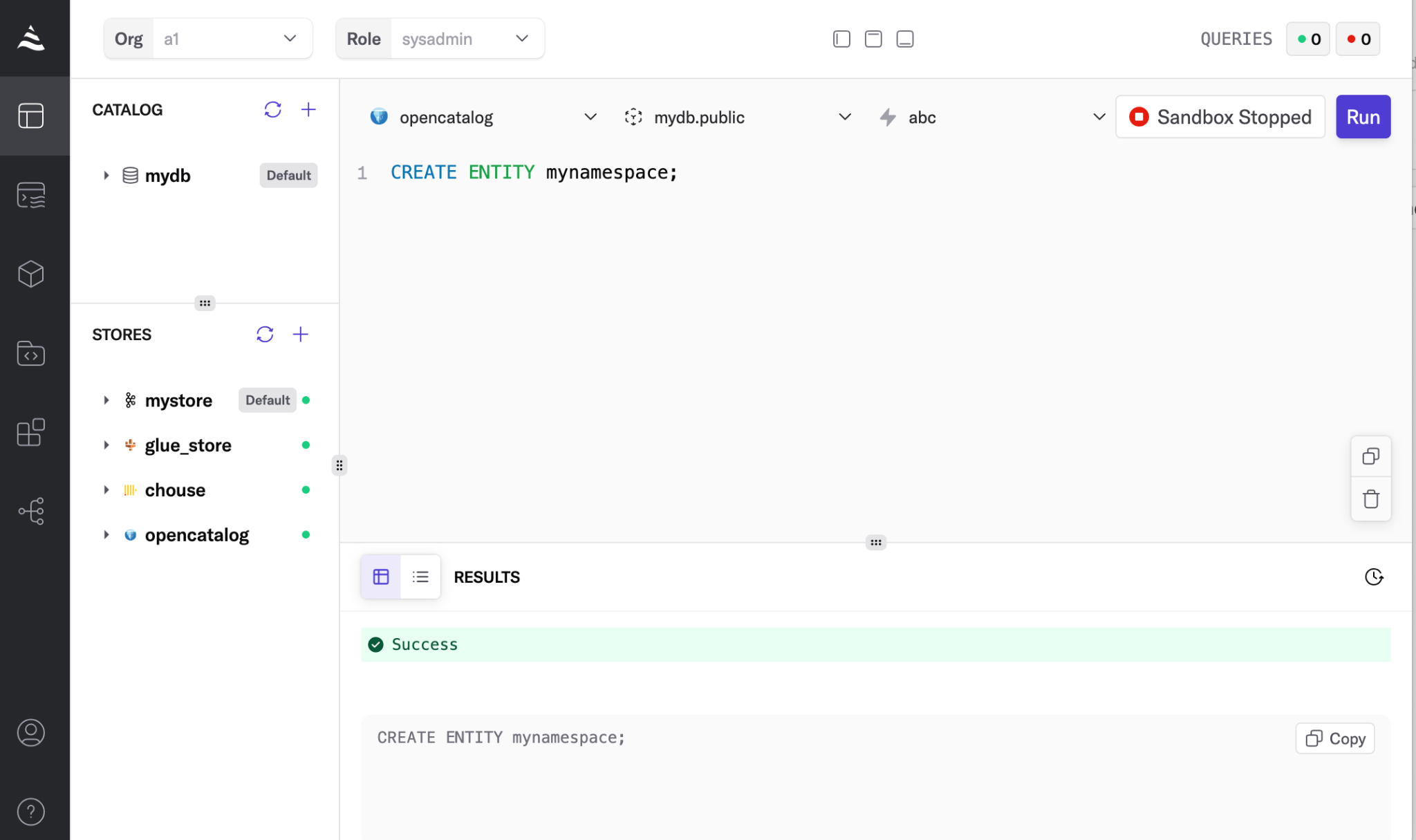
5. Create a namespace in opencatalog for the namespace to live in. To do this, return to the workspace to verify you can use your REST catalog. Run `` `CREATE ENTITY mynamespace;` `` -This command creates a namespace called `mynamespace` under your REST catalog.
### Write a CTAS (CREATE TABLE AS SELECT) Query to Sink Data into Iceberg
1. In the lefthand navigation, click **Workspace** (  ).
2. In the SQL pane of your workspace, write the CREATE TABLE AS SELECT (CTAS) query to ingest from **pageviews** and output to a new table titled `pageviews_iceberg_rest`.
```sql
CREATE TABLE pageviews_iceberg_rest WITH (
'store' = 'opencatalog',
'iceberg.rest.catalog.namespace.name' = 'mynamespace',
'iceberg.rest.catalog.table.name' = 'pageviews_iceberg')
AS SELECT * FROM pageviews;
```
3. Click **Run**.
The above statement performs several functions:
* Creates a DeltaStream relation called `pageviews_iceberg_rest` .This relation can be used by other queries
* Creates a table in the underlying REST catalog in the namespace called `mynamespace`.
* Creates a long running query that reads data from Kafka and sinks to an Iceberg table.
4. Now view the existing queries, including the query from the step immediately prior. To do this, in the left-hand navigation click **Queries** (  ).
{% hint style="info" %}
**Note** It may take a few moments for the query to transition into the **Running** state. Keep refreshing your screen until the query transitions.
{% endhint %}
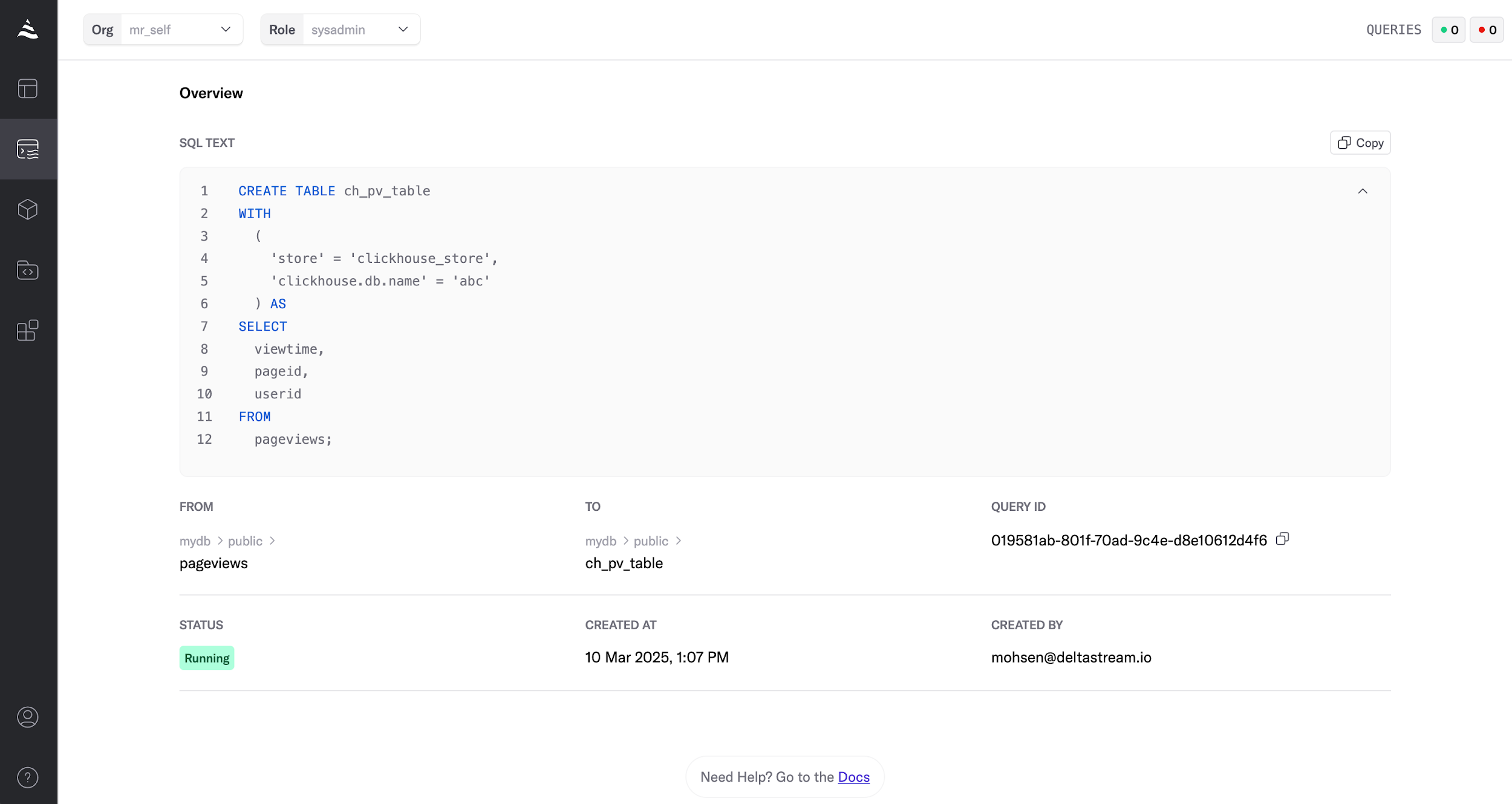
To see more details about the status of the query, click the query row:
#### View the results
1. In the left-hand navigation, click **Resources (**  ). This displays a list of the existing data stores.
2. To view the new table created by the above CTAS, navigate to **opencatalog** → **mynamespace** → **pageviews\_iceberg\_rest**.
To view a sample of the data in your Iceberg table, click **Print**.

### Process Streaming Data From Your Iceberg Data Store
Now it’s time to query the data stored in Iceberg. To do this:
1. Define a `compute_pool` to be able to query the iceberg table from above. Navigate to **Resources > Compute Pools**, and then click **+ Add Compute Pool.**

If this is the first `compute_pool` in the organization, DeltaStream sets it as your default pool.
2. Navigate to your DeltaStream workspace and run the following command:
```sql
`SELECT * FROM pageviews_iceberg_rest LIMIT 10;`
```
### Inspect the Iceberg Data Store
1. In the lefthand navigation, click **Resources (**  ). This displays a list of the existing data stores.
2. Click **opencatalog**. The store page opens, displaying a list of namespaces and tables.
### Clean up resources
```sql
STOP COMPUTE_POOL my pool;
TERMINATE QUERY