> For the complete documentation index, see [llms.txt](https://docs.deltastream.io/llms.txt). Markdown versions of documentation pages are available by appending `.md` to page URLs; this page is available as [Markdown](https://docs.deltastream.io/how-do-i.../creating-private-links/enabling-private-link-connectivity-to-confluent-enterprise-cluster-and-schema-registry.md).
# Enabling Private Link Connectivity to Confluent Enterprise Cluster and Schema Registry
Below is the procedure for creating private links for the data you’re streaming via DeltaStream. It includes the configuration needed within your Kafka cluster (in this case, Confluent Enterprise).
{% hint style="info" %}
**Note** Currently DeltaStream supports private links only in AWS.
{% endhint %}
### Before You Begin
* Review [Introducing Private Links](/how-do-i.../creating-private-links/introducing-deltastream-private-links.md).
* You must have signed up with DeltaStream and created at least one organization. Private links function within the context of an organization; from a logical perspective, you enable your private links within a specific DeltaStream organization.
* [Download the DeltaStream CLI](/getting-started/starting-with-cli.md) if you don’t already use it. Currently you cannot create private links via the DeltaStream UI.
* Request DeltaStream Operations to enable private link connectivity for your account.
* You must have the DeltaStream platform AWS account number that sends private link connectivity requests to your Kafka data stores. [Contact DeltaStream support](https://console.deltastream.io/support-center) to obtain this number.
* Optionally, work with DeltaStream Operations if you wish to run all your queries (that is, stream processing) within a dedicated AWS dataplane. By default all DeltaStream customer queries run in a shared multi-tenant dataplane; network policies isolate all traffic among multiple customers. This dedicated data plane separates your workload from other DeltaStream customers by using fully-isolated compute and VPC networking resources.
{% hint style="info" %}
**Note** There are separate but related instructions for creating private links for a [Confluent Cloud dedicated cluster](broken://spaces/utNVXZAEzOM5Pa3UQ5Ax/pages/T5OiaOccNryRnCeMLyYw); [AWS Managed Kafka (MSK)](broken://spaces/utNVXZAEzOM5Pa3UQ5Ax/pages/ynSRO8WFpfVu7FI9Dmj5); and [PRDS Postgres](broken://spaces/utNVXZAEzOM5Pa3UQ5Ax/pages/8fQ6A91V8j4OoD40nn8Y).
{% endhint %}
### Creating an Environment in Confluent
1. From your Confluent Console, navigate to **Environments** and click **Create Environment**. The **Create Environment** window opens. Click **Advanced**.
2. The **Create Cluster** screen displays. Enter a cluster name. Then:
1. For **Cluster Type**, click **Enterprise**.
2. For **Provider and region**, click **AWS**. Then click the **Region** down arrow and select the region you need.
3. Scroll down the page for more choices:
1. In the **Uptime SLA** section, click **99.9%** (if you’re testing; you may prefer **99.99%** for production instances).
2. In the **Networking** section, click **Private**.
3. Leave the network configuration as is for now.
4. Check to turn on the **Resource metadata access** slider. This setting enables you to verify your connectivity after you’re done by checking topics coming into your cluster.
4. Click **Launch Cluster**. The **Cluster** details screen displays, indicating you have not yet completed your setup.
5. In the righthand column, click **Create a PrivateLink configuration**.\
To create a Privatelink, access the **navigation menu** within your environment, and then click **Network Management**. Then click **Create gateway configuration** to continue the process.
6. The **Add Network Configuration** screen displays. Enter the provider and region once again, and enter a network name. Then click **Continue**. The **Enterprise cluster** details page displays again.
7. Click to activate the **Network management** tab.
8. Click the network name link. The **network** details page displays.
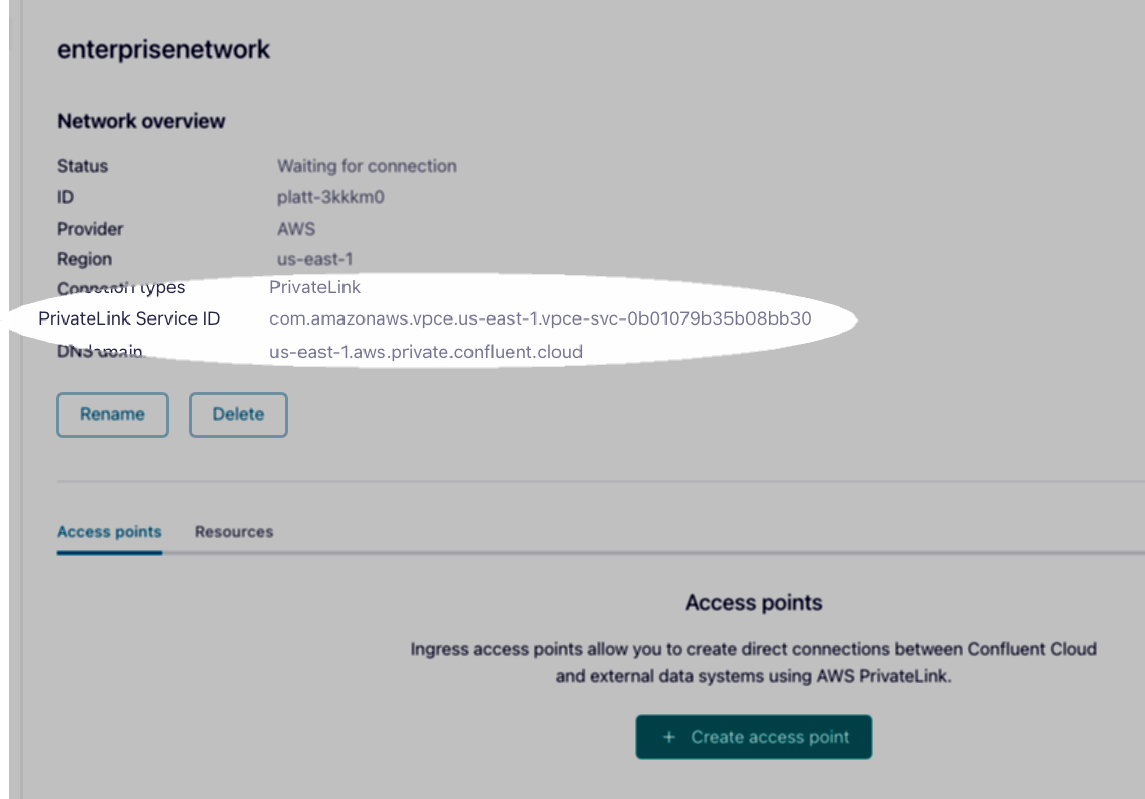
9. Note down the **PrivateLink Service ID** as `$$YOUR_ENDPOINT_SERVICE`. You use this variable a few steps later, when you create a private link in the DeltaStream CLI.
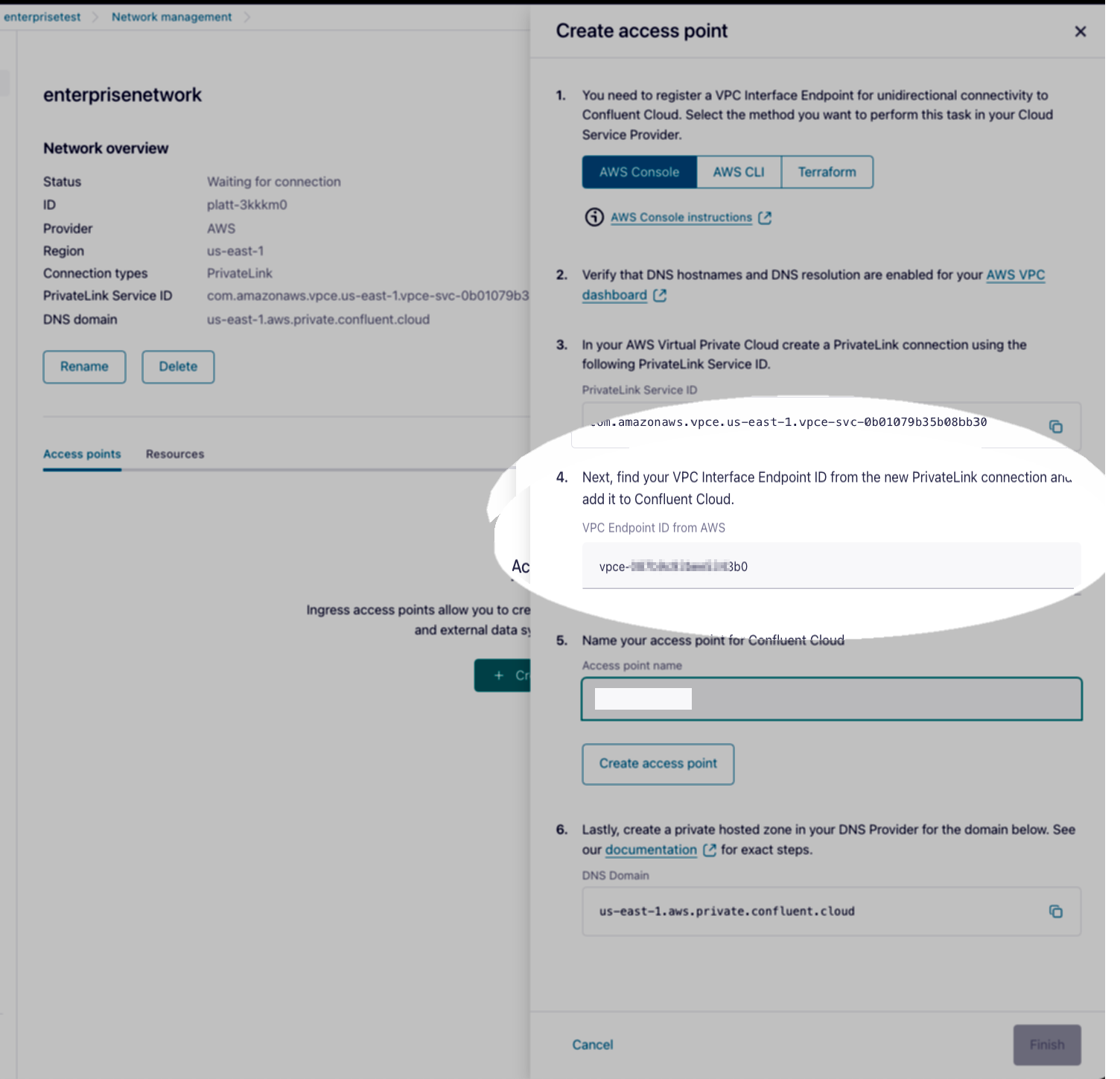
10. Click **+ Create access point**. The **Create access point** screen displays, overlaid over the network details page.
{% hint style="info" %}
**Note** In the **Create Access Point** screen above, you must enter the **step 4 VPC Interface Endpoint ID**. To get this ID, in the DeltaStream CLI follow the first two steps of the procedure below, then copy the ID and return to the **Create Access Point** screen to paste in the ID.
{% endhint %}
### Creating the Private Link in the DeltaStream CLI
This procedure involves building a SQL statement. When you complete and run the statement, DeltaStream processes the link request automatically. Note that the private link is not established until it is accepted or approved by administrators from your organization who are responsible for maintaining Kafka stores.
1. From the DeltaStream CLI, issue the following SQL command to create a private link for both the enterprise cluster and access to the schema registry. Paste in the endpoint service ID you just copied.
{% code fullWidth="false" %}
```sql
CREATE AWS PRIVATE LINK confluentent
WITH ('private_link.target_type' = CONFLUENT_KAFKA,
'private_link.service_name' = '$$YOURENDPOINTSERVICE',
'private_link.hosts' (
'*.useast-1.aws.private.confluent.cloud:9092' USING PORT 9092 IN '*',
'*.useast-[c]1.aws.private.confluent.cloud:443' USING PORT 443 IN '*'));
```
{% endcode %}
2. Next, verify the status of this private link. To do this, type `LIST AWS PRIVATE LINKS`.\
\
`| ID | Name | Target Type | Service Name | Status | Messages | Vpc Endpoint Id | Discovery Iam Role Arn | Created At | Updated At | Deleted At | Path |`
`+--------------------------------------+-------------------+-----------------+---------------------------------------------------------+-------------+----------------------+------------------------+--------------------------------------------------------------+-----------------------------------+-----------------------------------+-------------+-----------------------+`
`| 6de573d2-9635-42c8-895a-f934d7a57ecb | confluententent | confluent_kafka | com.amazonaws.vpce.us-east-2.vpce-svc-013e133da40f09f35 | in-progress | Private link pending | vpce-0c6d676494043f269 | arn:aws:iam::145624980286:role/pl-nxsxhuuwgvbmrck27e2npjl6zm | 2025-05-07 17:48:58.844 +0000 UTC | 2025-05-07 17:49:58.154 +0000 UTC | | ["confluententent"] |`
3. Go back to the Confluent console and return to the **Create access point** screen. Paste the endpoint service ID you copied earlier into the box in Step 4 of this screen.
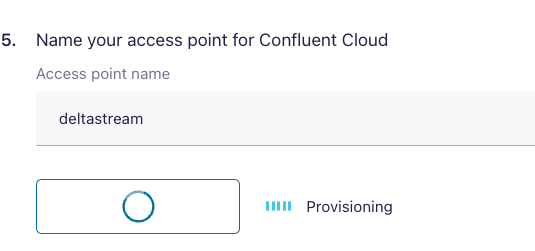
4. Enter a name for this access point.
5. Click **Create access point**. The status of the access point displays as provisioning.
6. Return to the DeltaStream CLI and again type `list AWS PRIVATE LINKS`. The link should display as `READY` within 1-3 minutes.
```sql
| ID | Name | Target Type |
Service Name | Status | Messages | Vpc Endpoint Id |
Discovery Iam Role Arn | Created At |
Updated At | Deleted At |
+--------------------------------------+--------------
+-----------------
+---------------------------------------------------------+---------
+-----------+------------------------
+--------------------------------------------------------------
+-----------------------------------
+-----------------------------------+-------------+
| b9bb786e-2dac-4275-8194-4f72b424414c | confluentent |
confluent_kafka | com.amazonaws.vpce.us-east-1.vpce-
svc-0b01079b35b08bb30 | ready | Current |
vpce-087b9c93bee5343b0 | arn:aws:iam::792739327446:role/pl-
xg5xq3rnvrbhlamuj5zlijcbjq | 2025-01-21 21:20:24.037 +0000 UTC |
2025-01-21 21:23:59.322 +0000 UTC |
```
The private link is now ready for you to test the connection.
### Testing the Private Link and Schema Registry Connection
1. Return to the Confluent Cloud environment. Navigate to the **enterprise cluster** details page, and verify the newly-created cluster is running.
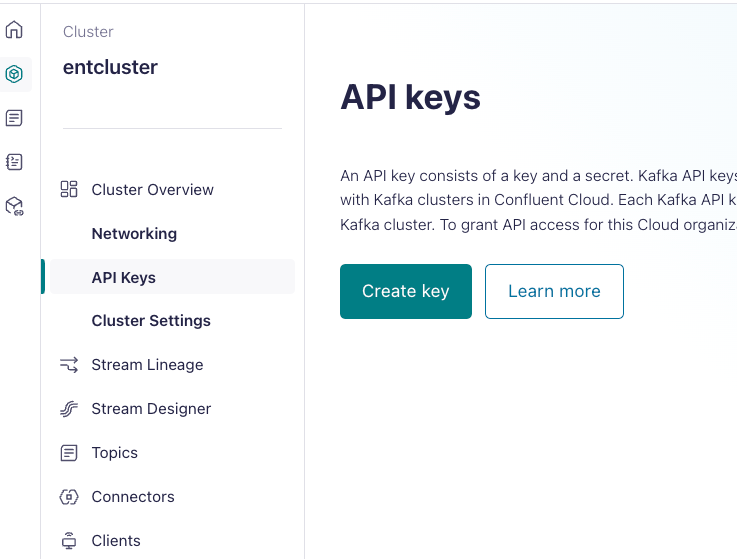
2. Navigate to the **API Keys** section of the cluster. Then click **Create Key**.
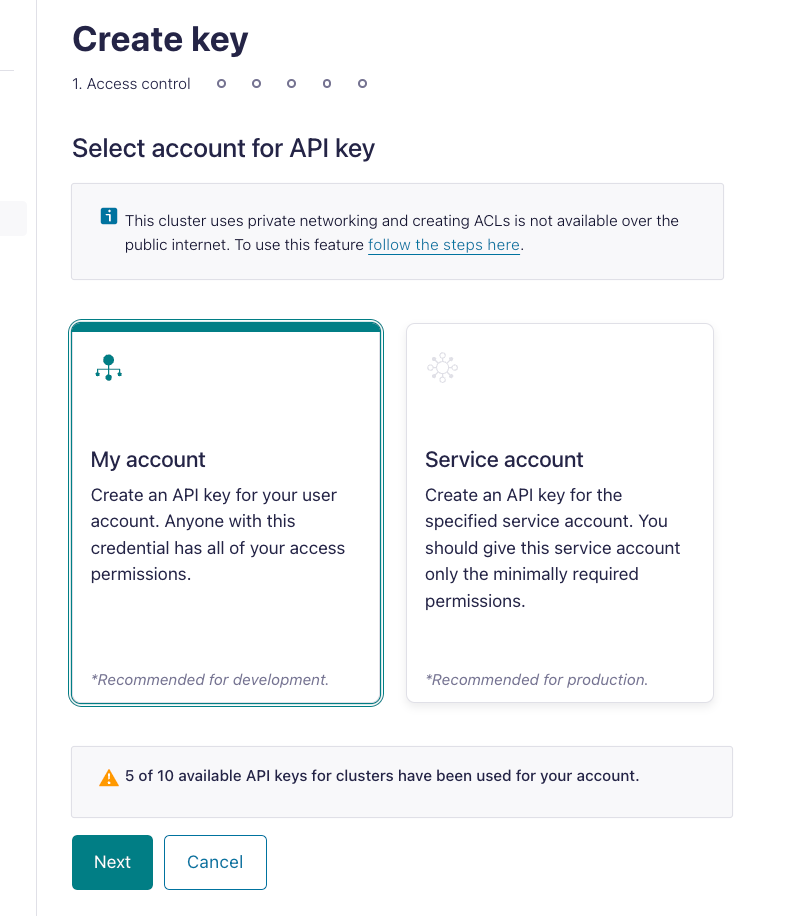
3. In the **Select account for API Key** screen, click **My account**.
4. Click **Next** and then download and store the newly-created access key file
5. Open the download key-secret file. It should resemble the following:
```
=== Confluent Cloud API key ===
API key:
KEY....
API secret:
SECRET....
Resource:
lkc-p3nm1m
Bootstrap server:
lkc-myenterprise-east-1.aws.private.confluent.cloud:9092
```
6. Return to the **enterprise cluster** details page and create a schema registry credential. To do this:\
a. At the bottom right of the cluster details screen, click **+ Add Key**.\
\ \
\
b. Next, navigate to the environment's menu and click **Schema Registry**.\
c. Click **API Keys**.\
d. Click **Add API Key**.
* This is separate from the Confluent cluster API key you downloaded earlier.
8. Download the **API key** and the **Secret**.
#### Creating a schema registry endpoint and a new data store to connect to the Confluent enterprise cluster
You do this from the DeltaStream UI.
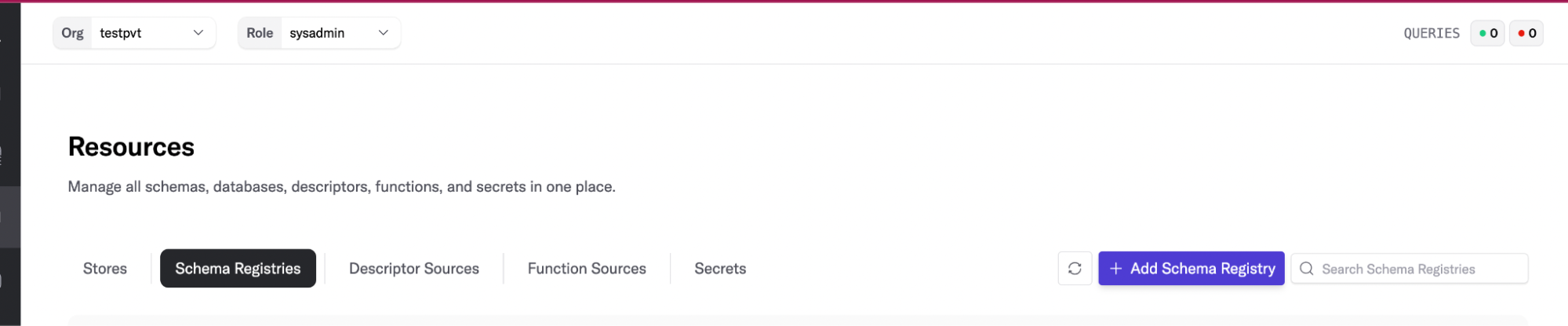
1. Create a schema registry from the DeltaStream Web console To do this, open DeltaStream and navigate to the **Resources** page.
2. Click to activate the **Schema Registries** tab. Then click **+ Add Schema Registry**.
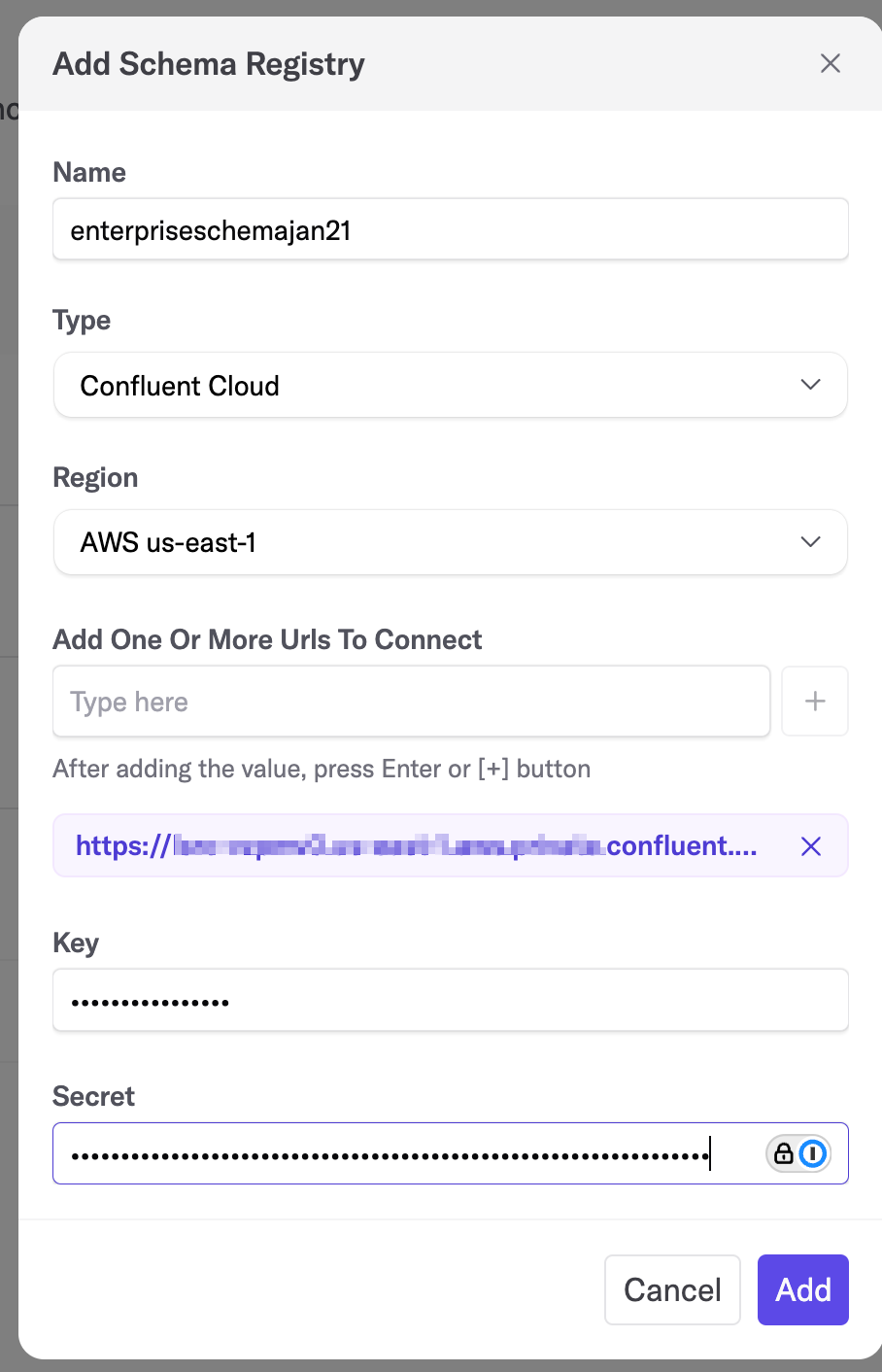
3. When the **Add Schema Registry** window opens, enter the desired information.
4. In the **Add One Or More URIs To Connect** box, paste in the **Schema Registry endpoint service ID**.
5. Paste in the schema registry **API Key** and **Secret**.
6. Click **Add**.
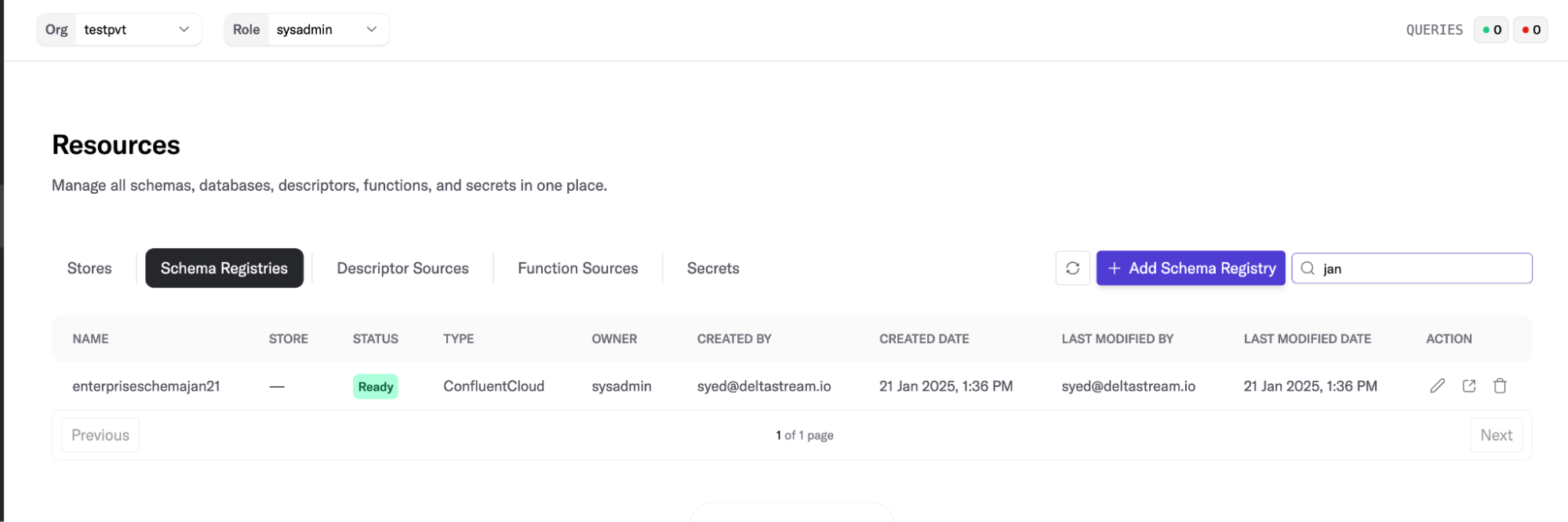
7\. Return to the **Resources** page and verify the schema registry is in the ready status.
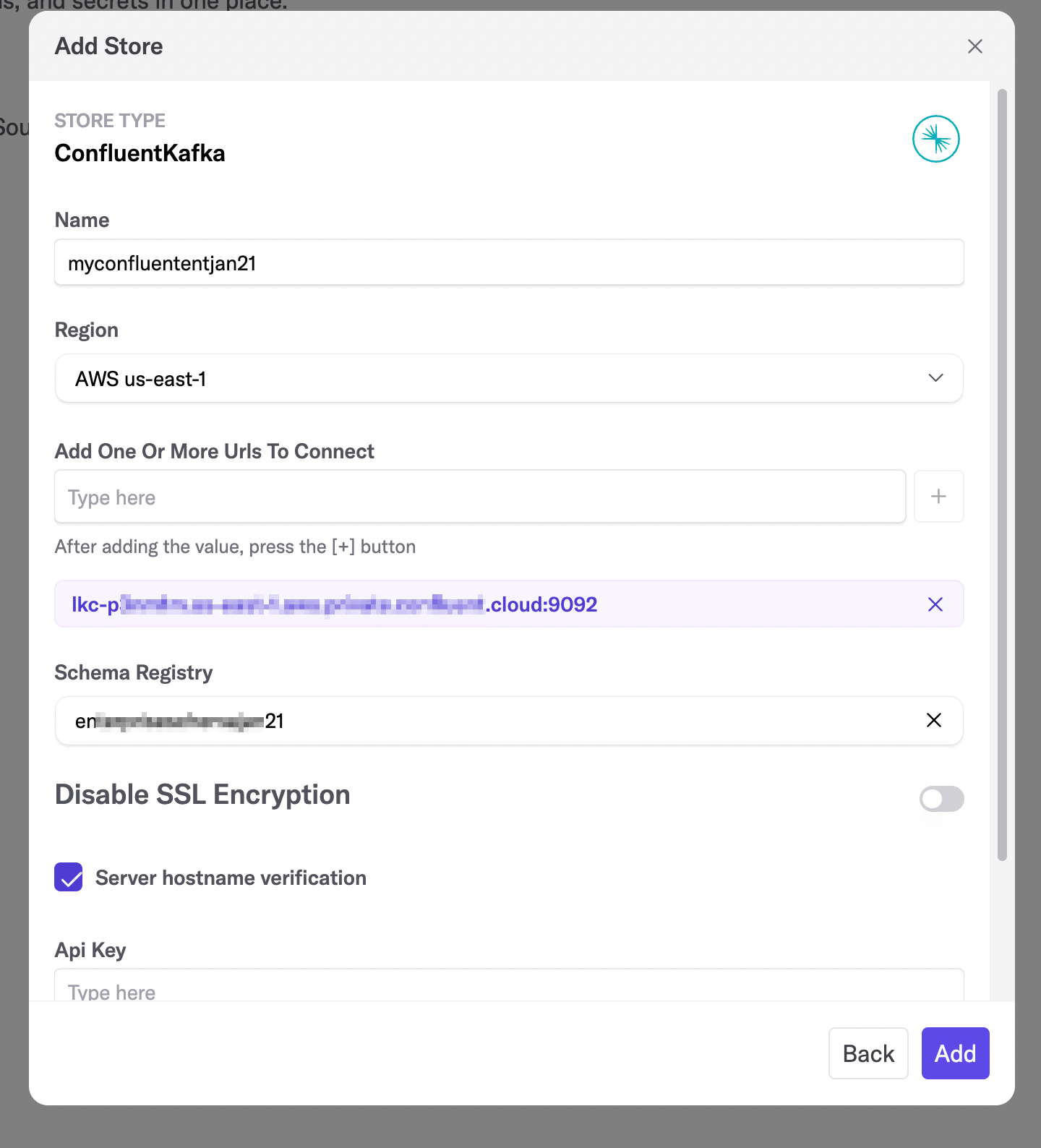
8\. Click to activate the **Stores** tab and create a new data store. To do this, click **+ Add Store**. The **Add Store** window opens. Enter the required information:
* Type in a name for the store.
* In the **Add One Or More URLs To Connect** box, paste the **Bootstrap Servers**.
* In the **Schema Registry** box, paste in the Schema Registry you created in Confluent.
9\. Enter the **API Key** and **Secret**.
10\. Click **Add**. The new store transitions to the `Ready` state in 1-2 minutes.
#### Verifying the connection to the enterprise cluster
To do this, start by adding topics to your new store.
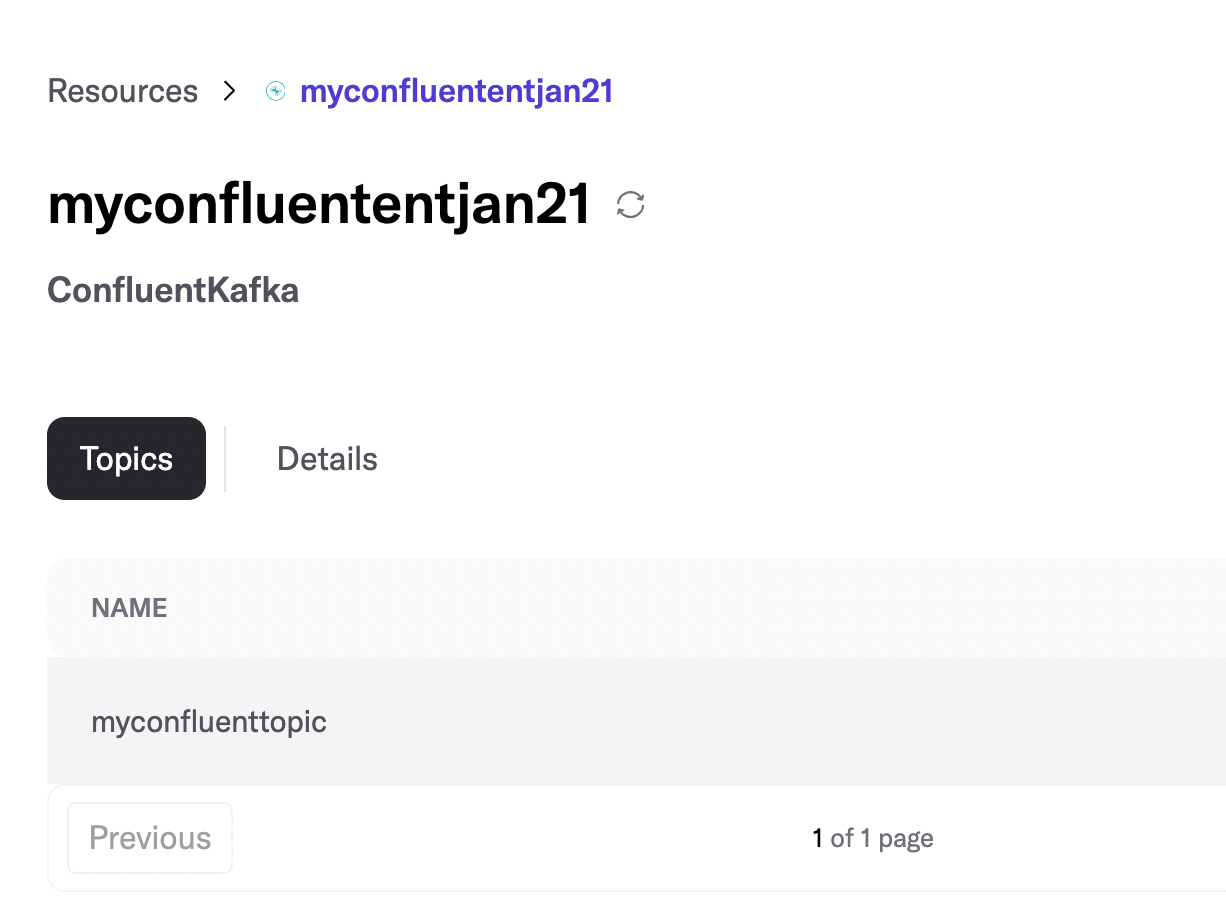
1. When the **Resources** page redisplays, click the name of the store you just created. The **Store** details page displays.
2. Click **Add Topic** to create a new topic. The **Add Topic** window opens. In here:
1. Enter a name for the topic.
2. In **Number of Partitions** box, type **1**.
3. In **Number of Replicas** box, type **3**.
3. Click **Add**.
The new topic displays.
4. Return to the Confluent Cloud dashboard to review the enterprise cluster metadata. To do this:
* Navigate to the **cluster** details page, and then click **Topics**.
The newly-created topic displays on your Confluent Cloud console.
This completes the verification process for your enterprise cluster.
Now verify the schema registry. To do this, you create a changelog in the AVRO file format using any existing relations or streams within DeltaStream.
.png?alt=media)
.png?alt=media)
.png?alt=media)

.png?alt=media)
.png?alt=media)
.png?alt=media)
 \
\
b. Next, navigate to the environment's menu and click **Schema Registry**.\
c. Click **API Keys**.\
d. Click **Add API Key**.
* This is separate from the Confluent cluster API key you downloaded earlier.
8. Download the **API key** and the **Secret**.
#### Creating a schema registry endpoint and a new data store to connect to the Confluent enterprise cluster
You do this from the DeltaStream UI.
1. Create a schema registry from the DeltaStream Web console To do this, open DeltaStream and navigate to the **Resources** page.
2. Click to activate the **Schema Registries** tab. Then click **+ Add Schema Registry**.
\
\
b. Next, navigate to the environment's menu and click **Schema Registry**.\
c. Click **API Keys**.\
d. Click **Add API Key**.
* This is separate from the Confluent cluster API key you downloaded earlier.
8. Download the **API key** and the **Secret**.
#### Creating a schema registry endpoint and a new data store to connect to the Confluent enterprise cluster
You do this from the DeltaStream UI.
1. Create a schema registry from the DeltaStream Web console To do this, open DeltaStream and navigate to the **Resources** page.
2. Click to activate the **Schema Registries** tab. Then click **+ Add Schema Registry**.
.png?alt=media)
.png?alt=media)