> For the complete documentation index, see [llms.txt](https://docs.deltastream.io/llms.txt). Markdown versions of documentation pages are available by appending `.md` to page URLs; this page is available as [Markdown](https://docs.deltastream.io/how-do-i.../creating-private-links/creating-an-aws-private-link-from-deltastream-to-your-confluent-kafka-dedicated-cluster.md).
# Creating an AWS Private Link from DeltaStream to your Confluent Kafka Dedicated Cluster
Below is the procedure for creating private links for the data you’re streaming via DeltaStream. It includes the configuration needed within your dedicated Confluent Kafka cluster.
{% hint style="info" %}
**Note** Currently DeltaStream supports private links only in AWS.
{% endhint %}
### Before You Begin
* Review [Introducing Private Links](/how-do-i.../creating-private-links/introducing-deltastream-private-links.md).
* You must have signed up with DeltaStream and created at least one organization. Private links function within the context of an organization; from a logical perspective, you enable your private links within a specific DeltaStream organization.
* [Download the DeltaStream CLI](/getting-started/starting-with-cli.md) if you don’t already use it. Currently you cannot create private links via the DeltaStream UI – only the CLI.
* Request DeltaStream Ops to enable private link connectivity for your account.
* You must have the DeltaStream platform AWS account number that sends private link connectivity requests to your Kafka data stores. [Contact DeltaStream support](https://console.deltastream.io/support-center) to obtain this number.
* Optionally, work with DeltaStream Operations if you wish to run all your queries (that is, stream processing) within a dedicated AWS dataplane. By default all DeltaStream customer queries run in a shared multi-tenant dataplane; network policies isolate all traffic among multiple customers. This dedicated data plane completely isolates your workload from other DeltaStream customers by using fully-isolated compute and VPC networking resources.
### Creating a Private Link
This procedure involves building a SQL statement. When you run the statement, DeltaStream processes the link request automatically. However, the private link is not fully established until it is accepted or approved by an administrator from your organization responsible for maintaining Kafka stores.
The entire statement resembles the below; we’ll go through it segment by segment, showing how and where to find the information you need to complete the statement.
```sql
CREATE AWS PRIVATE LINK myprivatelinktoconfluent
WITH ('private_link.target_type' = CONFLUENT_KAFKA,
'private_link.service_name' = 'com.amazonaws.vpce.us-east-1.vpce-svc-0ac5b449a5268bdf2',
'private_link.hosts' (
'*.use1-az2.dom4g23k71p2.us-east-1.aws.confluent.cloud:9092' USING PORT 9092 IN 'use1-az2',
'*.use1-az4.dom4g23k71p2.us-east-1.aws.confluent.cloud:9092' USING PORT 9092 IN 'use1-az4',
'*.use1-az6.dom4g23k71p2.us-east-1.aws.confluent.cloud:9092' USING PORT 9092 IN 'use1-az6'));
```
The private link created using the above SQL command is an inbound private link connection to your dedicated Kafka cluster within your Confluent cloud account.
{% hint style="info" %}
**Note** There are separate but related instructions for creating private links for [AWS Managed Kafka (MSK)](broken://spaces/utNVXZAEzOM5Pa3UQ5Ax/pages/ynSRO8WFpfVu7FI9Dmj5), [RDS Postgres](broken://spaces/utNVXZAEzOM5Pa3UQ5Ax/pages/8fQ6A91V8j4OoD40nn8Y), and [Confluent Enterprise edition](broken://spaces/utNVXZAEzOM5Pa3UQ5Ax/pages/mO5KZFCyDFxORWoS7AbA).
{% endhint %}
### Section 1: Creating a Dedicated Test Cluster in Confluent
{% hint style="warning" %}
**Important** The below steps guide you to create a test dedicated Kafka cluster. It assumes you do not already have a dedicated cluster or just wish to review private link options available in DeltaStream using a test cluster. If you already have a dedicated test cluster, skip this section and proceed now to Section 2.
{% endhint %}
{% hint style="info" %}
**Note** While we attempted to make the below procedure all-inclusive – that is, to relieve you of having to discover on your own where to go and what to look for – if you would like more details, see [Use AWS PrivateLink with Confluent Cloud](https://docs.confluent.io/cloud/current/networking/private-links/aws-privatelink.html#use-aws-privatelink-with-ccloud) for in-bound dedicated clusters.
{% endhint %}
To create a dedicated test cluster to run inside a dedicated VPC:
1. From your Confluent Cloud console home screen, under **Resource Overview**, click **Environments**.
2. Click **Default**.
3. When the default screen displays, click **Create cluster**.
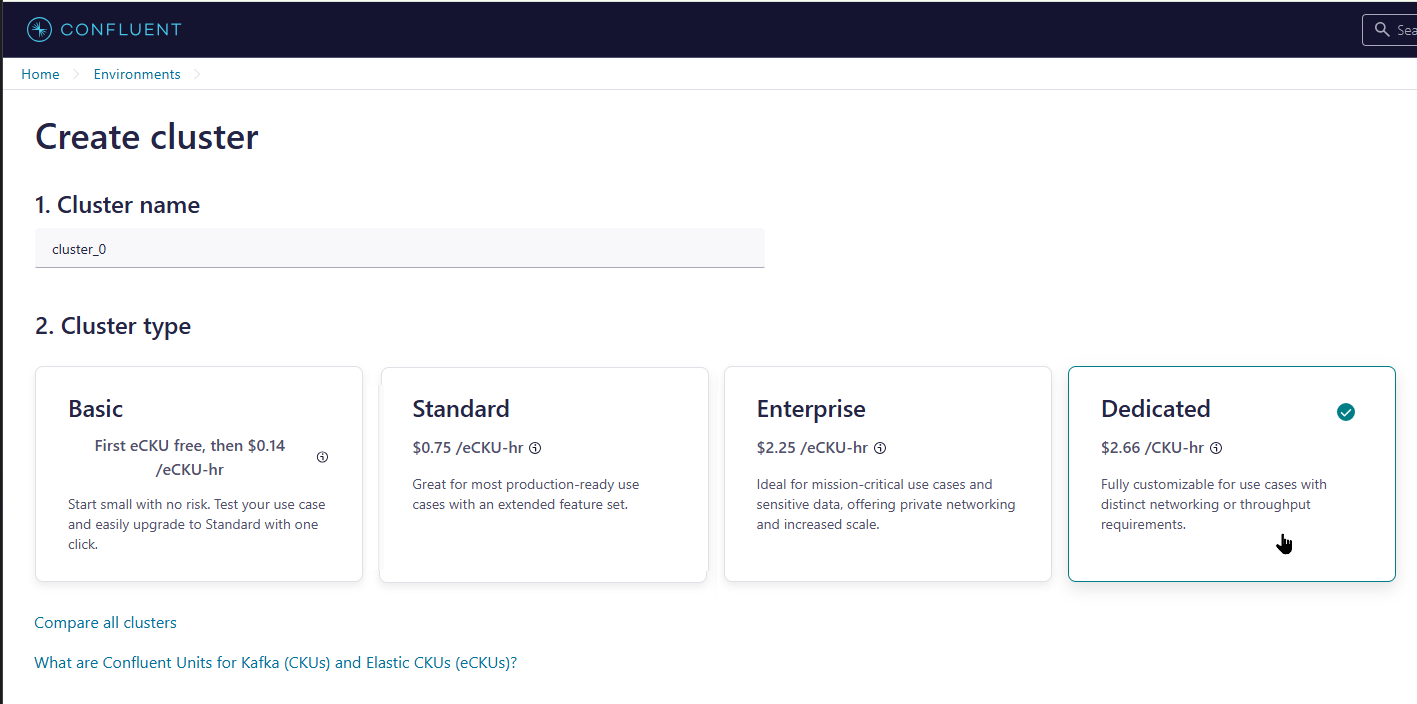
4. From the **Create cluster** screen, click **Dedicated**. When the cost displays in the **Cluster cost** pane, click **Launch Dedicated provisioning flow**.
5. The **Create cluster** screen redisplays. Click **Begin configuration**.
1. For the cluster type click **AWS**.
2. For **Region/zones**, verify the region is the one you intend; otherwise click the down arrow and select another region.
3. For **Availability**, click either **Single zone** or **Multi zone**.\
Your choice depends on your availability needs. For example, for a simple test cluster you can choose single zone to save on total dedicated cluster cost.
6. Towards the bottom of the screen, click **Continue**. The **Create Cluster** screen redisplays.
7. Click **PrivateLink**. This is the link you must configure for Confluent.
11. In the **Network** section, click either **Create New** or **Use Existing**, depending on your pre-existing setup.
* If you select **Create New**, enter a network name.
* If you select **Use Existing**, you must also enter a network. To do this, in your Confluent Cloud Console navigate to **Environments** > **Default**. In the **Default** screen, click **For Dedicated Clusters**, and from the list that displays select the cluster you want.
* Return to the **Create Cluster** screen, click the **Choose Network** down arrow, and from the list that displays select the same cluster.
12. Under **Network zone placement**, verify the boxes for three zones are the ones you have already configured for your computing environment.
13. Retain any pre-existing default values and click **Continue**.
The next few steps lead you to precisely where in your configuration you can find the information and settings you need to copy and then paste into the DeltaStream CLI and establish the private link.
14. Retain the default value of **Automatic**, and click **Continue**. The **Create cluster** screen redisplays.
15. When the screen refreshes, enter the cluster name. Then, towards the bottom of the screen, click **Launch Cluster**.
16. The default screen redisplays. Confluent begins provisioning your new cluster. It may take a few minutes for it to become available.
17. Verify the cluster creation. To do this:
1. Towards the top navigation click **Network Management**.
2. Click **For dedicated clusters** and click the cluster you just created. The cluster screen displays, detailing its configuration.
Your cluster is now ready. This is the cluster to connect privately, and this cluster detail screen is where you’ll find and copy information you need to create the private link in the DeltaStream CLI. In your environment for a dedicated cluster, click to activate the **network** tab to display the relevant information about this cluster.
{% hint style="warning" %}
**Important** This cluster details screen is the screen to which you’ll need to return. Bookmark this screen, or keep it open. You'll need it to copy additional information to enter into the DeltaStream CLI when you create your private link. If you end your session prematurely you can return to this screen by navigating to **Environments** > **Network Management** > **For Dedicated Clusters**, and then clicking the name of the cluster you just created.
{% endhint %}
18. Toward the lower right, click **Private Link Access**. The **Add PrivateLink access** screen displays, including information to enter in sections labeled Step 1 and Step 2.
19. Enter a name for this private link.
{% hint style="success" %}
**Tip** For simplicity’s sake you may wish to name this link *DeltaStream*.
{% endhint %}
20. In the Step 1 that displays on this screen, enter the **AWS Account Number** you received from DeltaStream support before you began this procedure.
Entering the AWS account number populates the VPC service endpoint service name field in Step 2. This VPC endpoint service name is the endpoint you must enter when you begin working with the DeltaStream CLI.
21. Click **Add**. The cluster detail screen redisplays, now including details of the dedicated link.
Cluster details
To verify that the cluster is being provisioned, check to activate the **Ingress connections** tab, and in the DeltaStream section look at the cluster status. It should be ready.
{% hint style="info" %}
**Note** If the cluster status is still provisioning, wait a few more minutes and then refresh the screen.
{% endhint %}
Now switch to DeltaStream and launch the DeltaStream CLI.
### Section 2: Writing the SQL Statement in DeltaStream to Create the Private Link
Reminder: The private link you’re creating looks similar to this:
```sql
CREATE AWS PRIVATE LINK myprivatelink
WITH ('private_link.target_type' = CONFLUENT_KAFKA,
'private_link.service_name' = '$$YourEndpointServiceName',
'private_link.hosts' (
'*.Hostname1:9092' USING PORT 9092 IN 'Host1-az1',
'*.Hostname2:9092' USING PORT 9092 IN 'Host2-az2',
'*.Hostname3:9092' USING PORT 9092 IN 'Host3-az3'));
```
1. Start by specifying which DeltaStream organization you wish to use:
`Use $$yourorgname`
The private link connection you’re creating will be in this specific DeltaStream organization. No other DeltaStream organization will have access to this private link.
2. (Optional) Verify how many private links you already have. (If you’re setting up a private link for the first time you can omit this step.) To do this, enter
`LIST AWS PRIVATE LINKS;`
3. Create a private link. To do this, enter
`CREATE AWS PRIVATE LINK $$yourconfluentcloud`
5. Enter the **VPC Endpoint Service Name** created by Confluent for the dedicated cluster:
`'private_link.service_name' =`
6. Now return to the Confluent console cluster detail page you bookmarked earlier. Copy the **VPC Endpoint Service Name**, and in the DeltaStream UI append the service name to the SQL statement.
Now provide the Kafka broker DNS sub-domains. To do this:
7. Return to the Confluent console cluster details page. Note the DNS subdomain section, which consists of three different hostnames, each in a subnet within the VPC.
8. Now convert Confluent SQL syntax to the DeltaStream SQL syntax. To do this, begin by copying the first endpoint service name, beginning after the colon.
9. In the DeltaStream CLI, preface the host name with `*`. Then paste in the hostname.
10. Append the host name with the port used by Kafka, and then provide the proper availability zone (typically 9092).
* Essentially, what you’re doing here is modifying the format of the information on the network overview page of your Confluent cloud, in the DNS subdomain section, into the format specified by DeltaStream.
{% hint style="info" %}
**Note** You can also think of the DeltaStream private link as similar to a generic port feature. This enables DeltaStream to support MSK, Postgres, or other technologies in the future.
{% endhint %}
11. For the `IN` port, from the **Cluster** page in Confluent, copy the prefix, which in this case is `use1-aws`, and append it to the statement in the DeltaStream CLI.
This is the DNS sub-domain information in front of the colon.
12. Repeat these steps for the next two endpoints.
Your SQL statement in the DeltaStream CLI is now ready. Run the statement. DeltaStream displays a confirmation and begins creating the private link:
To find out the status of this process, at the prompt type
`LIST AWS COMMAND PRIVATE LINKS;`
This command reviews the current state of the private links. It verifies the information entered and indicates the private link is in progress.
The private link is ready to be used. You can proceed to write queries to the cluster in DeltaStream as if it were a cluster over the Internet. But it is a dedicated cluster. It is not available on the Internet.
{% hint style="info" %}
**Note** You can also return to the Confluent page and see if there’s a status change listed there, as well. Refresh the page; this may take a few moments.
{% endhint %}
To begin using the private link, in DeltaStream [create a Confluent Kafka Store for your dedicated Kafka cluster](/integrations/setting-up-data-store-integrations/confluent-cloud.md) that’s accessible via the newly-created private link. You can use either the CLI or the UI to do this.
{% hint style="warning" %}
**Important** The dedicated Kafka cluster is only accessible to the organization you used to create a private link to the cluster. If you use the UI, verify that the organization you select when creating the store is the same one for which you enabled this private link.
{% endhint %}
### Verifying Private Link Connectivity
To verify connectivity you can use the DeltaStream console UI to add a Kafka topic. To do this you must set the number of partitions to 1 and the number of replicas to 3.
From DeltaStream you should get an alert that the operation was successful. You should also be able to see the newly-created topic in DeltaStream.
Optionally, verify the connection in Confluent. To do this:
1. Switch to the Confluent console and navigate to the **Cluster Overview** page (**Environments** > **Default** > **$$yourclustername**)
2. In the lefthand navigation click **Topics**.
3. Click **Enable metadata read access**.
If the **Topics** page displays without the **Enable metadata read access** option, go to the lefthand navigation and click **Cluster settings**.
4. When the **Cluster settings** page displays, click to activate the **Security** tab. Then, in the lefthand navigation, click **Stream Lineage**.
5. The **Resource metadata access** section displays. Click the toggle to **On**, and at the prompt click **Ok**.
6. In the lefthand navigation pane, click **Topics**. The Topics list page now displays any topics you’ve created
.png?alt=media)
.png?alt=media)
.png?alt=media)
.png?alt=media)
.png?alt=media)
.png?alt=media)
.png?alt=media)
.png?alt=media)
.png?alt=media)
.png?alt=media)
.png?alt=media)
.png?alt=media)