> For the complete documentation index, see [llms.txt](https://docs.deltastream.io/llms.txt). Markdown versions of documentation pages are available by appending `.md` to page URLs; this page is available as [Markdown](https://docs.deltastream.io/how-do-i.../creating-private-links/creating-a-private-link-for-rds-databases.md).
# Creating a Private Link for RDS Databases
RDS is used primarily for writing to a table or a changelog. Creating an RDS private link makes it possible to access a postgres store via a DeltaStream private link without exposing RDS endpoints on the public Internet.
Private links are specific both to your DeltaStream organization and to your data store’s AWS region. Setup is important; the steps are exacting and involve using the DeltaStream command line interface (CLI) in tandem with AWS management console.
In the DeltaStream CLI you build the SQL that instantiates the private link request from the DeltaStream platform. It supports a single RDS instance, or an RDS proxy name to which you wish to connect. Currently DeltaStream does not support multi-replica RDS clusters..
When you establish an RDS PostgreSQL private link you must accept private link requests made by DeltaStream to your AWS account.
Below is the procedure for creating private links for the data you’re streaming via DeltaStream. It includes the necessary cluster configuration.
{% hint style="info" %}
**Note** Currently DeltaStream supports private links only in AWS.
{% endhint %}
### Before You Begin
* Review [Introducing Private Links](/how-do-i.../creating-private-links/introducing-deltastream-private-links.md).
* You must have signed up with DeltaStream and created at least one organization. Private links function within the context of an organization; from a logical perspective, you enable your private links within a specific DeltaStream organization.
* [Download the DeltaStream CLI](/getting-started/starting-with-cli.md) if you don’t already use it. Currently you cannot create private links via the DeltaStream UI.
* Request DeltaStream Ops to enable private link connectivity feature for your account.
* You must have the DeltaStream platform AWS account number that sends private link connectivity requests to your RDS data stores. [Contact DeltaStream support to obtain this number](https://console.deltastream.io/support-center).
* Optionally, work with DeltaStream Operations if you wish to run all your queries (that is, stream processing) within a dedicated AWS dataplane. By default all DeltaStream customer queries run in a shared multi-tenant dataplane; network policies isolate all traffic among multiple customers. This dedicated data plane completely isolates your workload from other DeltaStream customers by using fully-isolated compute and VPC networking resources.
### Creating a Private Link
To begin, you first establish an endpoint service for RDS. Then you build a SQL statement that includes the RDS endpoint . When you run the statement, DeltaStream processes the link request automatically. Note that the private link is not established until it is accepted or approved by administrators from your organization who are responsible for maintaining data stores.
The SQL statement resembles the below:
{% code overflow="wrap" %}
```sql
CREATE AWS PRIVATE LINK rdsprivatelinktest
WITH ('private_link.target_type' = POSTGRES,
'private_link.service_name' = '$$YOUR_ENDPOINT_SERVICE_NAME',
'private_link_hosts' ('$$RDS_HOSTNAME: $$RDS_PORT' USING PORT $$RDS_PORT IN '*'));
```
{% endcode %}
{% hint style="info" %}
**Note** There are separate but related instructions for creating private links for [AWS Managed Kafka (MSK)](broken://spaces/utNVXZAEzOM5Pa3UQ5Ax/pages/ynSRO8WFpfVu7FI9Dmj5), [Confluent Kafka](broken://spaces/utNVXZAEzOM5Pa3UQ5Ax/pages/T5OiaOccNryRnCeMLyYw), and [Confluent Enterprise edition](broken://spaces/utNVXZAEzOM5Pa3UQ5Ax/pages/mO5KZFCyDFxORWoS7AbA).
{% endhint %}
### Setting up an Endpoint Service for RDS.
RDS does not by default support private links. So to establish this connection with DeltaStream, you must instead set up an endpoint service on top of the RDS endpoint. See [Access Amazon RDS across VPCs using AWS PrivateLink and Network Load Balancer](https://aws.amazon.com/blogs/database/access-amazon-rds-across-vpcs-using-aws-privatelink-and-network-load-balancer/) for more information and details on how to do this yourself.
### Writing the SQL Statement in DeltaStream to Create the Private Link to RDS
After you have set up the endpoint service, gather the RDS hostname and RDS Endpoint Service name and insert the variables:
* if your `RDS_ENDPOINT_SERVICE_NAME` is `‘com.amazonaws.vpce.us-east-1.vpce-svc-123456789aa0112'`
* and your `RDS_HOST_NAME` is `ds-myrds-stage-xyz1-db-0.abcdefgh1239.us-east-1.rds.amazonaws.com`
* and your `RDS_PORT` is `5432`
then your statement will resemble the following (sections in bold are those you get from your RDS console):
CREATE AWS PRIVATE LINK rdsprivatelinktest
WITH ('private_link.target_type' = POSTGRES,
      'private_link.service_name' = 'com.amazonaws.vpce.us-east-1.vpce-svc-123456789aa0112',
      'private_link.hosts' (
            'ds-myrds-stage-xyz1-db-0.abcdefgh1239.us-east-1.rds.amazonaws.com:5432'
    USING PORT 5432 IN '*'));
After you complete and run the statement, verify the status of the link. To do this, wait a few moments, then type
```sql
LIST AWS PRIVATE LINKS;
```
The link you just created displays a list of private links with their current status.
### Accepting the Private Link Request to the RDS Endpoint Service
When your link changes to the following status:
`“Warning: Private link service not found, was the principal accepted?`
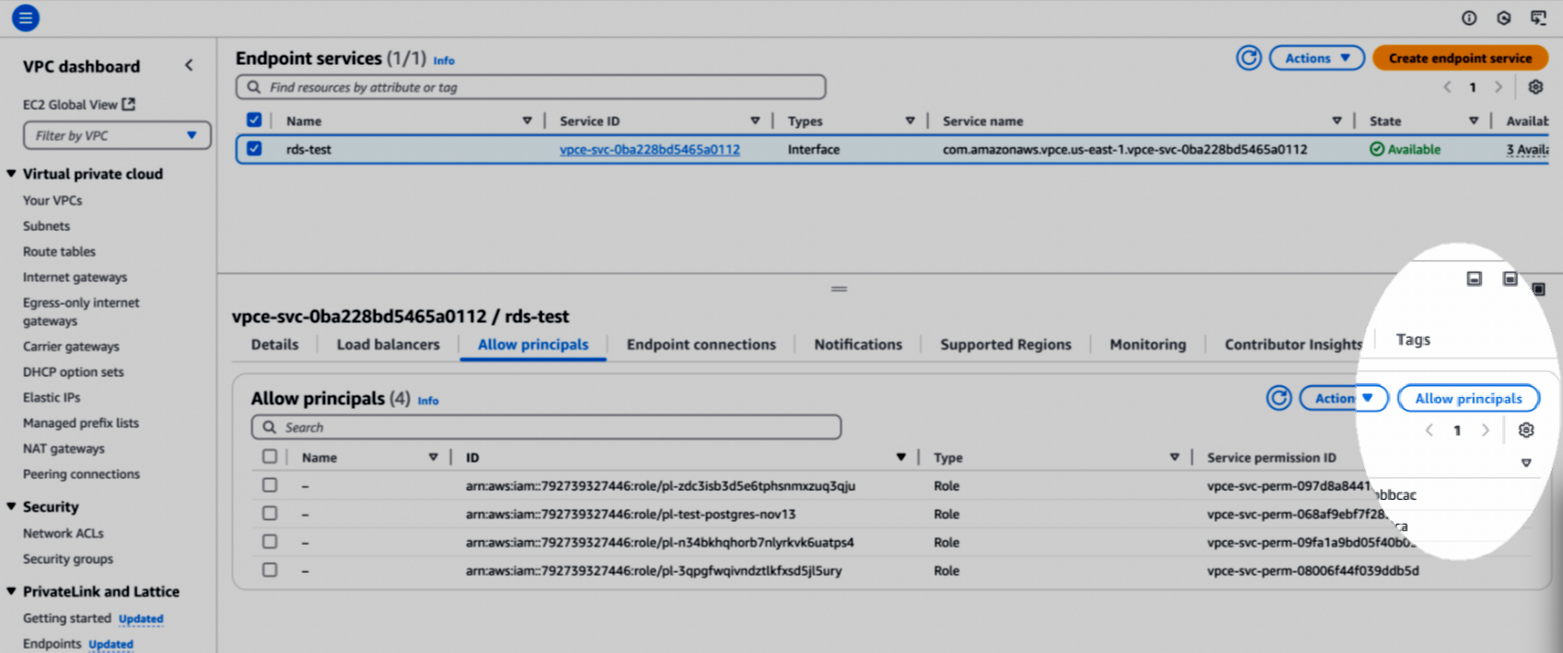
you must manually accept the principal that the DeltaStream platform uses to initiate the private link connection. Here’s how to do this:
1. From the DeltaStream CLI, copy the **Discovery IAM Role ARN** that displays next to the private link status when you issue issue the list aws private links command.
2. Switch to the AWS console session in which you manage RDS and VPC for your AWS account.
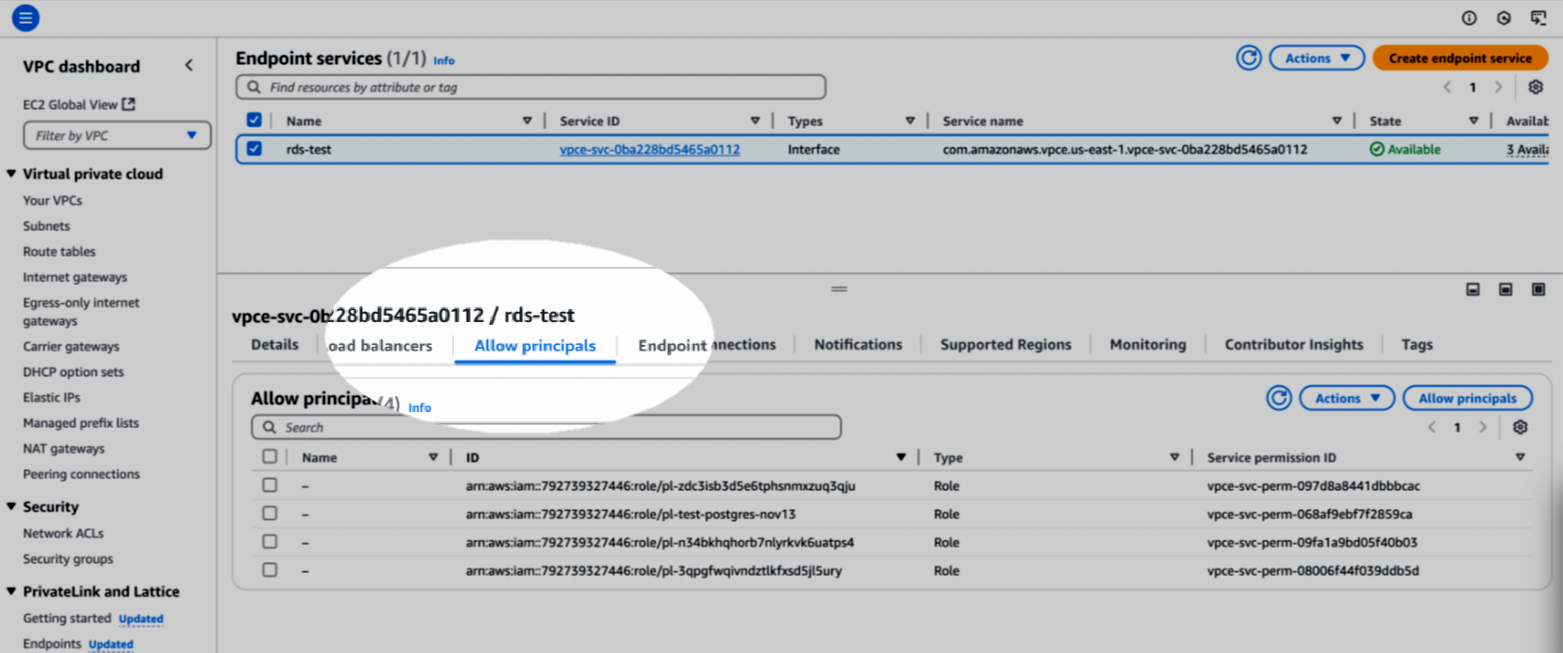
3. Navigate to the **Endpoint services** page.
4. Click to activate the **Allow principals** tab.
5. In the **Allow principles** section, above the righthand column click **Allow principals**.
6. When the **Allow principals** screen displays, paste in the **Discovery ARN** you just copied.
7. Click **Allow Principals**.
8. Return to the DeltaStream CLI and verify the status of the RDS link is **pending acceptance**. To do this, type `list aws private links.`
9. Return to the AWS console for the RDS Endpoint Services and click to activate the **Endpoint Connection** tab.
10. Click **Accept Endpoint Connection Request**.
11. Wait until the link is ready. To do this, return to the DeltaStream CLI and again type `list aws private links`. The status should change to READY within 4-5 minutes.
### Verifying Private Link Connectivity
To verify connectivity, use the DeltaStream console UI to create a new Postgres data store, then drill down to a table and verify that data is streaming into it. To do this:
1. In DeltaStream navigate to **Resources** > **Stores**.
2. Click **+ Add Store**, and from the list that displays click **PostgreSQL**.
3. When the **Add Store** window displays, enter the required information.
4. Enter a valid username and password for testing RDS connectivity. Your RDS Postgres administrator can provide this.
{% hint style="warning" %}
**Important** In the **Add One Or More URIs To Connect** box, preface the RDS hostname with `postgres//`. Then at the end of the hostname append the port number. Do not include horizontal spaces in either case. For example:
`postgres://ds-myrds-stage-xyz1-db-0.1234567891234.us-east-1.res.amazonaws.com:5432`.
{% endhint %}
5. Click **Add**. The **Resources** page redisplays, listing all of your DeltaStream data stores. Locate the store you just created.
* If you have already many stores you may need to search for it using the search box toward the top right of the screen. Then click your store to display the store details page.
* If the store status is **Verifying**, wait a minute or two and refresh the page. The store should display with a status of **Ready**.
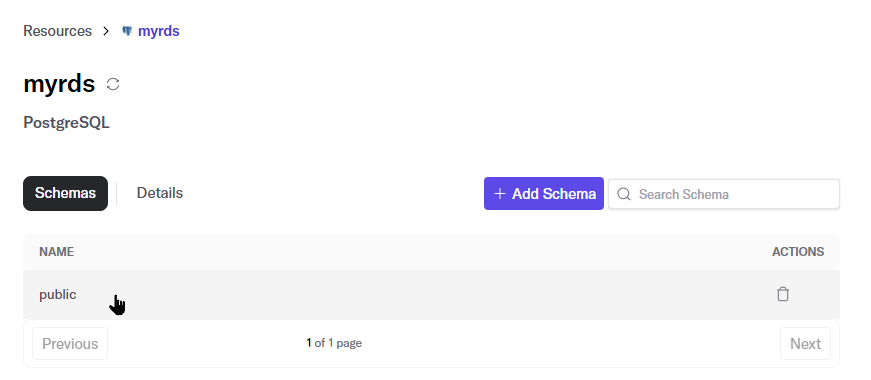
6. Click the store to display a schema list.
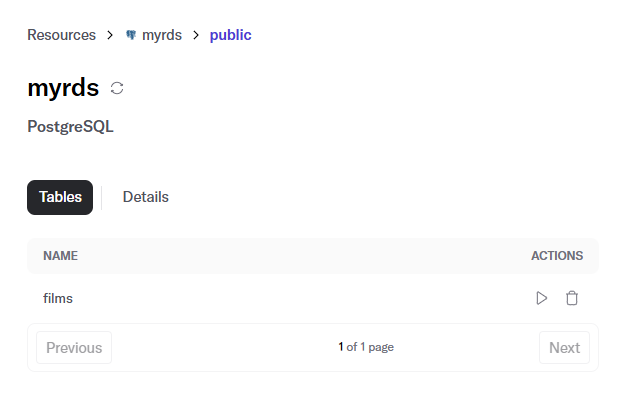
7. Click a schema to display a list of tables.
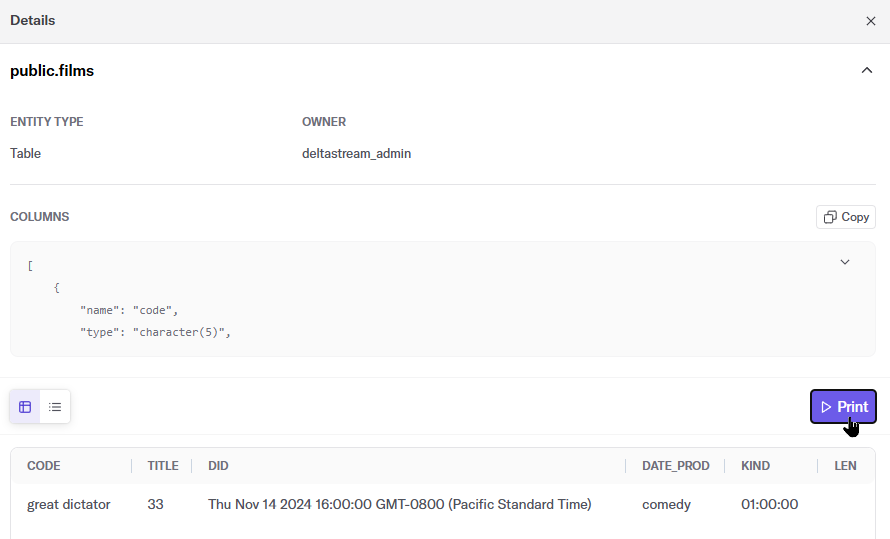
8. Click a table to display the table details page.
9. Click **Print** to display data coming into the table.
Incoming data verifies that you are connected.
.png?alt=media)
.png?alt=media)